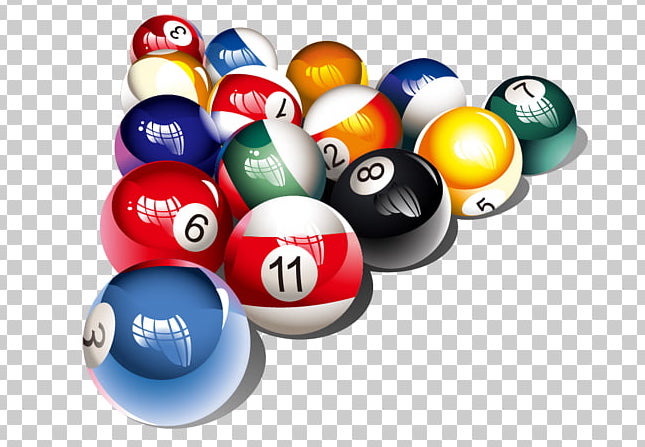
I came across a neat set of glass snooker balls when I was looking for a new status icon for a project I've been working on. Because I needed it in more colour varieties than were available(needed about 12 in fairly specific colours) I could either sit with GIMP and come up with what I needed or quickly throw something together that would do a similar kind of thing but have an infinite variety of colours (and animation possibilities).
Since I've not come across many great tutorials on developing these kinds of graphics with Java & Swing I thought I'd share mine in case it helps anyone else.
The first step is to create a new class which implements the interface Icon. I've done this with the class GemIcon and given it a few basic attributes.
/** Diameter to render gem if no default is set. **/
private static final int DEFAULT_DIAMETER = 16;

/** Color if no default is set. **/
private static final Color DEFAULT_COLOR = Color.GRAY;

/**  Diameter to render gem. **/
private int diameter;

/** Color to render gem. **/
private Color foreground;
The Icon interface defines 3 simple methods for developers to skin their own icons.
/**
 * Draw the icon at the specified location.  Icon implementations
 * may use the Component argument to get properties useful for
 * painting, e.g. the foreground or background color.
 */
void paintIcon(Component c, Graphics g, int x, int y);

/**
 * Returns the icon's width.
 *
 * @return an int specifying the fixed width of the icon.
 */
int getIconWidth();

/**
 * Returns the icon's height.
 *
 * @return an int specifying the fixed height of the icon.
 */
int getIconHeight();
In our case the getIconWidth & getIconHeight are fairly simple, we just return the diameter of the gem (including the shadow) which should give us a nice squared icon.
For the paintIcon we only really have a few steps we need to take.
- Centre the graphics so we can draw outwards
- Draw the shadow under the gem
- Draw the gem
int radius = diameter/2;
g.translate(x, y);
g.translate(radius, radius);

drawShadow(g2, radius);
drawGem(g2, radius);

g.translate(-radius, -radius);
g.translate(-x, -y);
The shadow code is fairly simple:
//Don't want the shadow right to the edge so leave a small gap
int shadowRadius = (int)((0.9)*radius);

//Setup the radial paint
g2.setPaint(new RadialGradientPaint(
	new Point(0, -(int)(0.5*shadowRadius)),
	shadowRadius,
	new float[]{
		0f,
		1f
	},
	new Color[]{
		//Draw from transparant to white
		new Color(g2.getColor().getRed(),g2.getColor().getGreen(),g2.getColor().getBlue(), 0),
		new Color(255,255,255,80)
	})
);
//Paint the shadow
g2.fillOval(-shadowRadius, -shadowRadius, shadowRadius*2, shadowRadius*2);
The gem painting code is a little more complex (but not much):
int gemRadius = radius;
gemRadius*=0.5;

//Draw the basic outline of the gem shape
g2.setColor(getForeground());
g2.fillOval(-gemRadius, -gemRadius, 2*gemRadius, 2*gemRadius);

//Draw a simple highlight across the top of the gem to look a little more real
int highlightXOffset = (int)(gemRadius*0.8);
int highlightYOffset = (int)(gemRadius*0.67);
g2.setPaint(new LinearGradientPaint(
	new Point(0, -gemRadius),
	new Point(0, gemRadius),
	new float[]{
		0f,
		1f
	},
	new Color[]{
		Color.WHITE,
		new Color(g2.getColor().getRed(),g2.getColor().getGreen(),g2.getColor().getBlue(),0)
	})
);
//Paint the highlight
g2.fillOval(-highlightXOffset, (-gemRadius+1), 2*highlightXOffset, 2*highlightYOffset);
The above code gives you something that looks like this: 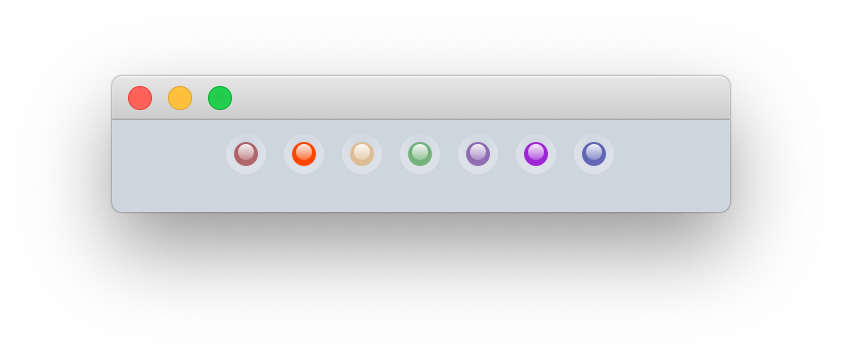
It's not a whole lot of code to achieve something that adds a little touch of something different to the default java look and feels although I'll probably end up enhancing it to have the more glass like effect when I get a chance.
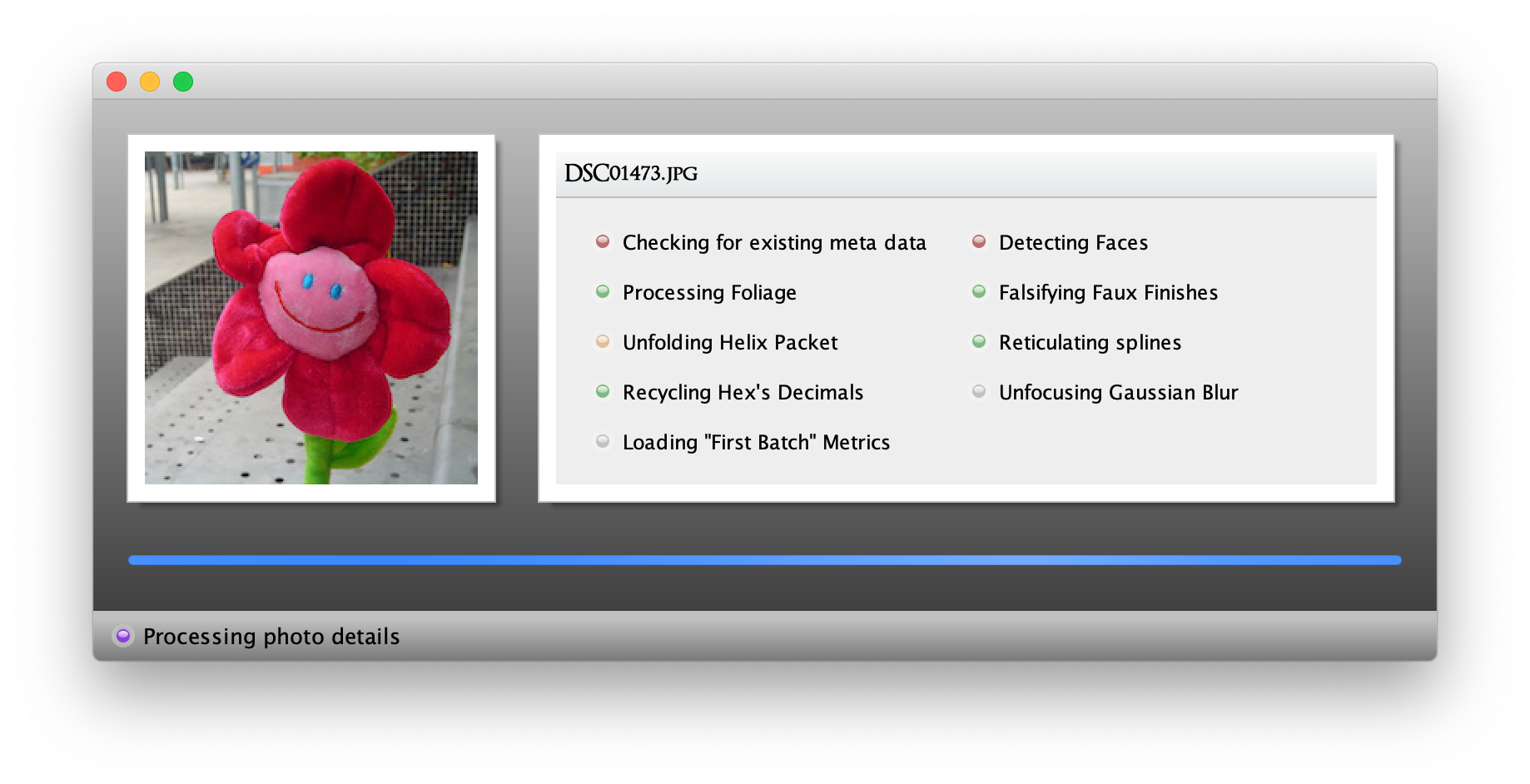
Below is a quick sample of how the gems look in a prototype app.